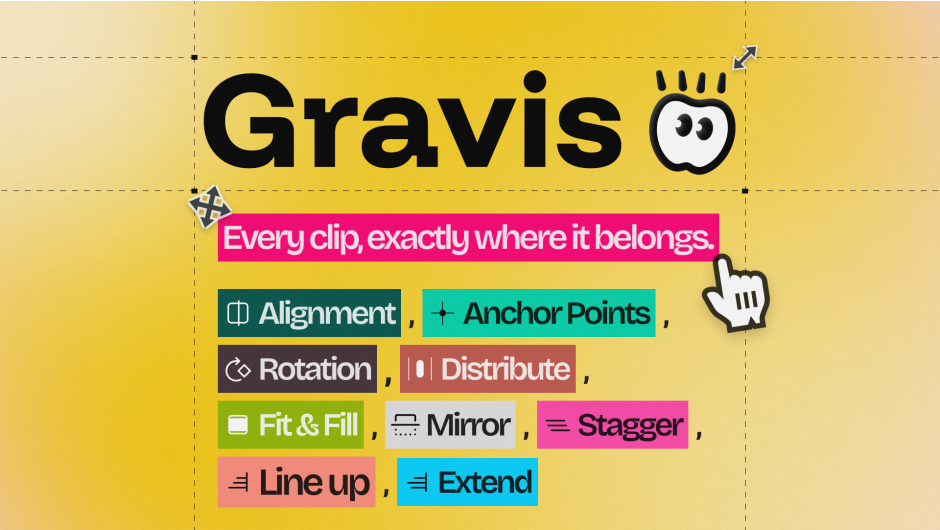
Gravis is a panel for arranging clips in Adobe Premiere Pro. It brings alignment, anchor point, framing, transform and timeline controls together for work that otherwise involves manual positioning or repeated dragging.
You can align footage to the sequence canvas or a selection, position several clips as a group, and arrange titles on the timeline. Gravis measures the picture as it appears in the frame, including rotation, cropping and scaling.
Align clips and set anchor points
Align clips to the canvas, to a selection or to each other. Group-to-canvas alignment lets you move a layout while keeping the spacing between its clips. The commands operate on the clips currently selected in Premiere Pro.
For anchor points, choose from nine positions. With Update in place enabled, Gravis moves the anchor while keeping the picture in the same place. Its grid also shows the clips’ current anchor positions, which helps when checking a layout before animation.
Fit, distribute and transform clips
Use Fit to scale a clip inside the frame or Fill to cover the frame. Distribute clips evenly or set an exact pixel gap. These operations account for rotation, cropping and scaling when measuring the visible picture.
Gravis can also mirror clips horizontally or vertically and rotate them by 90 degrees clockwise or counterclockwise. Pressing a mirror command again removes that flip.
Arrange titles on the timeline
Stagger selected clips from the top or bottom with a chosen time offset. This can sequence titles or captions, and linked audio remains in sync with its picture. You can also line up clip starts, line up their ends, or extend them to finish with the longest clip, a workflow suited to subtitles and lower thirds.
Each change appears as one named step in Premiere Pro’s undo history, even when it affects several clips. Use Ctrl+Z on Windows or Command+Z on macOS to undo that step.
Compatibility, installation and trial
The product listing specifies Premiere Pro 26.5 or newer, including Premiere Pro 2027, on macOS or Windows. Install Gravis with the aescripts + aeplugins Manager App or the ZXP/UXP Installer, then open it from Window > UXP Plugins > Gravis. The panel adapts to a narrow dock or a short strip above the timeline.
The listing offers a free 10-day trial. Its tutorial video walks through the panel’s tools. See the Gravis product page for current availability and details.
Version 1.1.1
The listing records version 1.1.1 on November 17, 2026. It adds support for Premiere Pro 2027 clips with Uniform Scale turned off and recognizes the renamed Scale Height control.
Who may find Gravis useful
Gravis is a practical fit for editors who often align several clips, adjust anchors without shifting the image, or arrange title sequences and lower thirds.