DDSlideshow is a Blender add-on that turns still images into a Ken Burns-style slideshow in the Video Sequence Editor (VSE). It creates animated zooms and pans, with optional intro and outro slides and an audio track. The Blender Extensions listing identifies version 0.0.5 and Blender 4.2.0 as the minimum version. Its file access permission is for loading slideshow images.
Create a slideshow
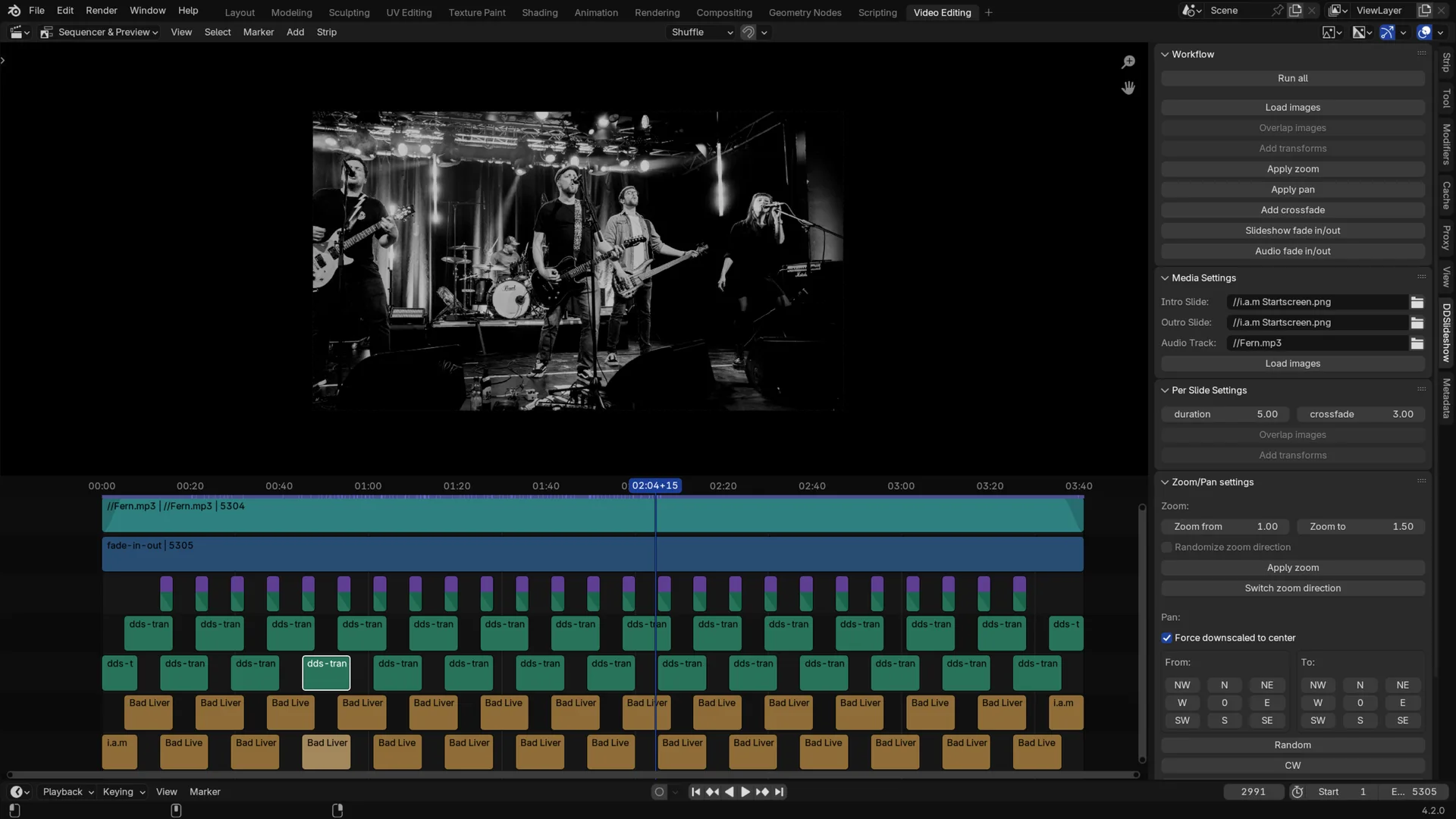
- Open a Blender project, switch to Video Editing, and open the DDSlideshow panel beside the timeline.
- Set any options you need, such as an intro or outro image, an audio track, zoom range, and pan direction.
- Choose Run all, select the images in Blender's file browser, and confirm. DDSlideshow builds the sequence using those settings.
- Preview the result with the timeline playback controls. The developer's README also describes a manual workflow for running individual steps.
Set the motion and timing
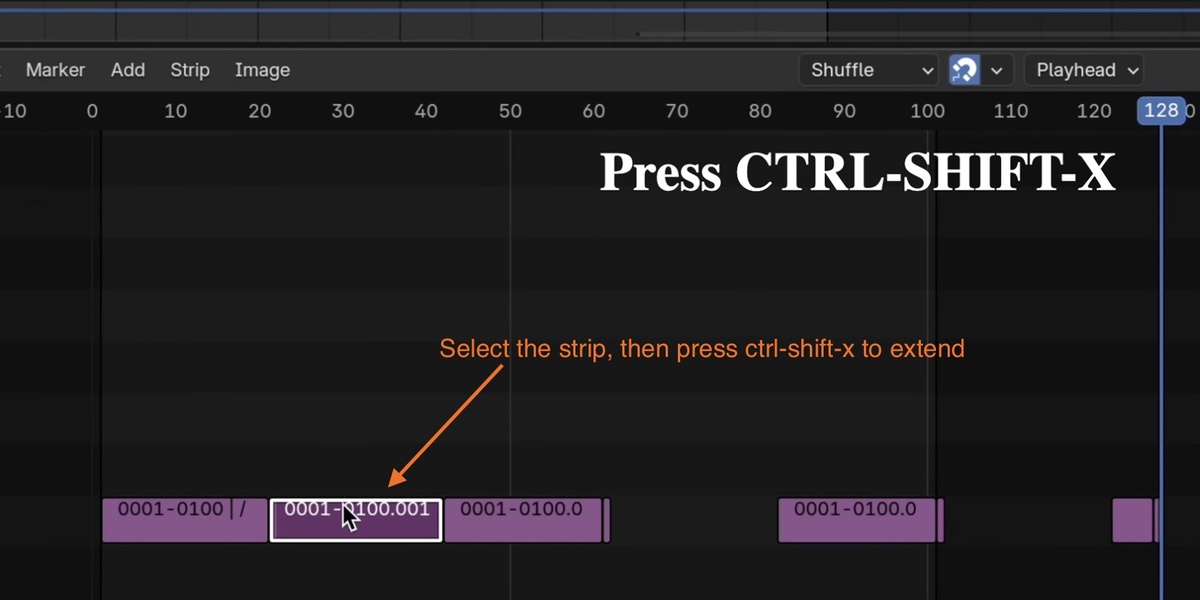
Zoom controls set the starting and ending scale for each image. You can randomize zoom direction across slides, then change the direction on an individual strip. Panning uses nine anchor positions across the frame, from NW to SE. A zoom of 1 disables zooming and panning; below 1, panning follows the “Force downscaled to center” setting by default and can be changed after generation with the Fix workflow; above 1, the image pans toward the configured anchor. Choose start and end positions, randomize the direction, or cycle through anchors clockwise or counterclockwise.
Slide duration is how long each image is shown without a crossfade; crossfade sets the blend time between two images and is added to the slide duration. DDSlideshow can also fade the slideshow in and out. These controls give you a repeatable starting sequence while leaving individual strips available for adjustment.
Review images and audio before rendering
DDSlideshow cannot identify the subject or focal point in a photo, so an automatic pan can move important detail out of view. Images with a different aspect ratio from the sequence can also lose part of the frame when the default Fill scaling is used. Preview the timeline and adjust zoom direction, pan target, or alignment on any affected image.
An audio track is optional and can have fade-in and fade-out times. If the track is longer than the slideshow, DDSlideshow shortens it to the sequence and applies the configured fade-out at the sequence’s end rather than the track’s end. A shorter track is not extended automatically, so the timeline may have silence after it ends. The README suggests using a long enough track, accepting the silence, or duplicating and overlapping the track with a manual fade.
DDSlideshow prepares the edit in Blender's VSE. Configure the output format in Blender, then render the animation when the sequence is ready.
Sources: Blender Extensions and the DDSlideshow developer repository.