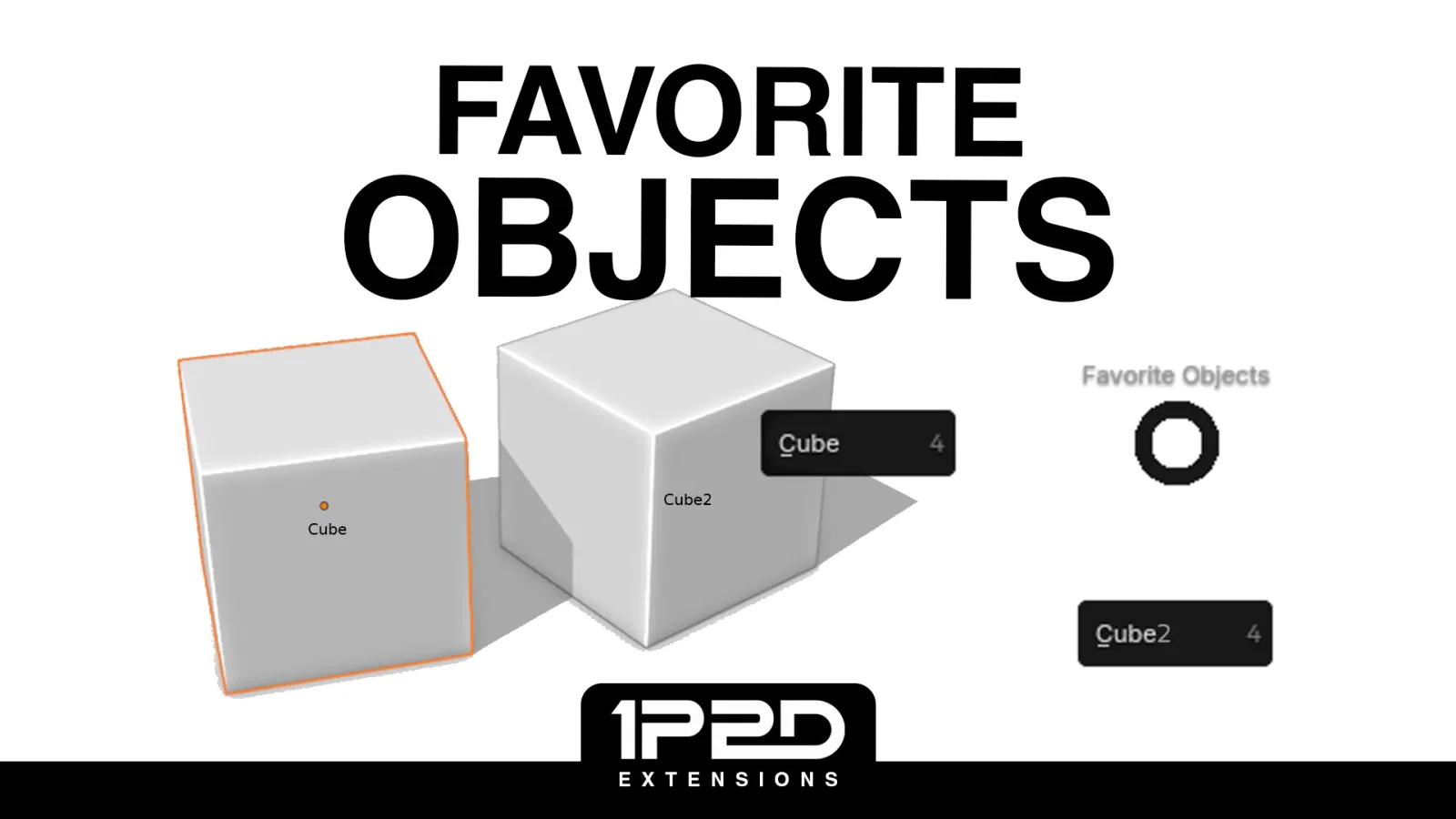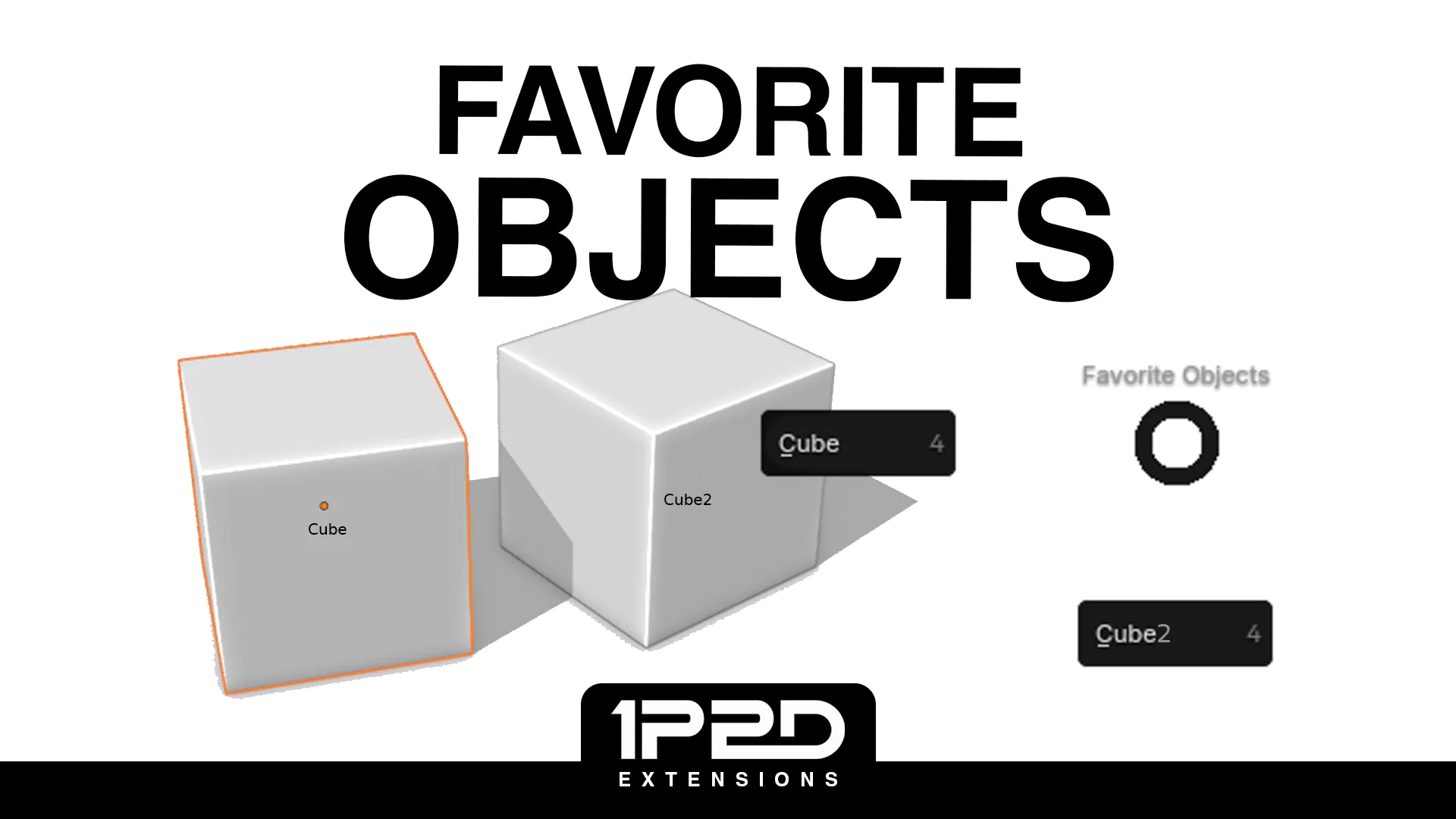
Favorite Objects is a Blender add-on by 1P2D for marking scene objects as favorites and selecting them from the Viewport. It helps when you work with a maximized viewport and the Outliner is out of view. The Blender Extensions catalog lists version 1.0.5 for Blender 4.2.0 and later.
Find scene objects from the Viewport
Favorite Objects is for returning to objects in the current Blender file. Open its menu from the Viewport to select a saved favorite, and use the “Frame Selected Favorite” option to bring a chosen object into view. The listing describes viewport selection and framing; it does not describe a library for inserting saved objects into other scenes.
Add and select favorites
In Object Mode, right-click an object to add or remove it from your favorites. The default shortcut, Ctrl+Alt+LMB, opens the Favorite Objects menu, and you can change that shortcut in the add-on settings. Version 1.0.5 also supports Ctrl+Alt+RMB to add selected objects; double-clicking that shortcut removes them. The pie menu includes icons.
More than eight favorites in version 1.0.5
Earlier versions were limited to eight favorites. Version 1.0.5 removes that cap. When there are more than eight, the first seven appear in the pie menu and the eighth slot opens a “More” submenu for the rest. That keeps the main menu compact while leaving the additional objects accessible.
Compatibility and license
The Blender Extensions catalog sets Blender 4.2.0 as the minimum version and lists the add-on under GPL-3.0-or-later. The add-on is available as a free download. Check the Blender Extensions listing for the current release. For the detailed shortcut behavior, see the Favorite Objects feature description.
Who it suits
Favorite Objects suits Blender users who often hide or maximize the Outliner and need quick access to selected objects in a scene. It is useful for navigation in an existing file; users looking to reuse custom geometry across files will need an asset-library workflow.