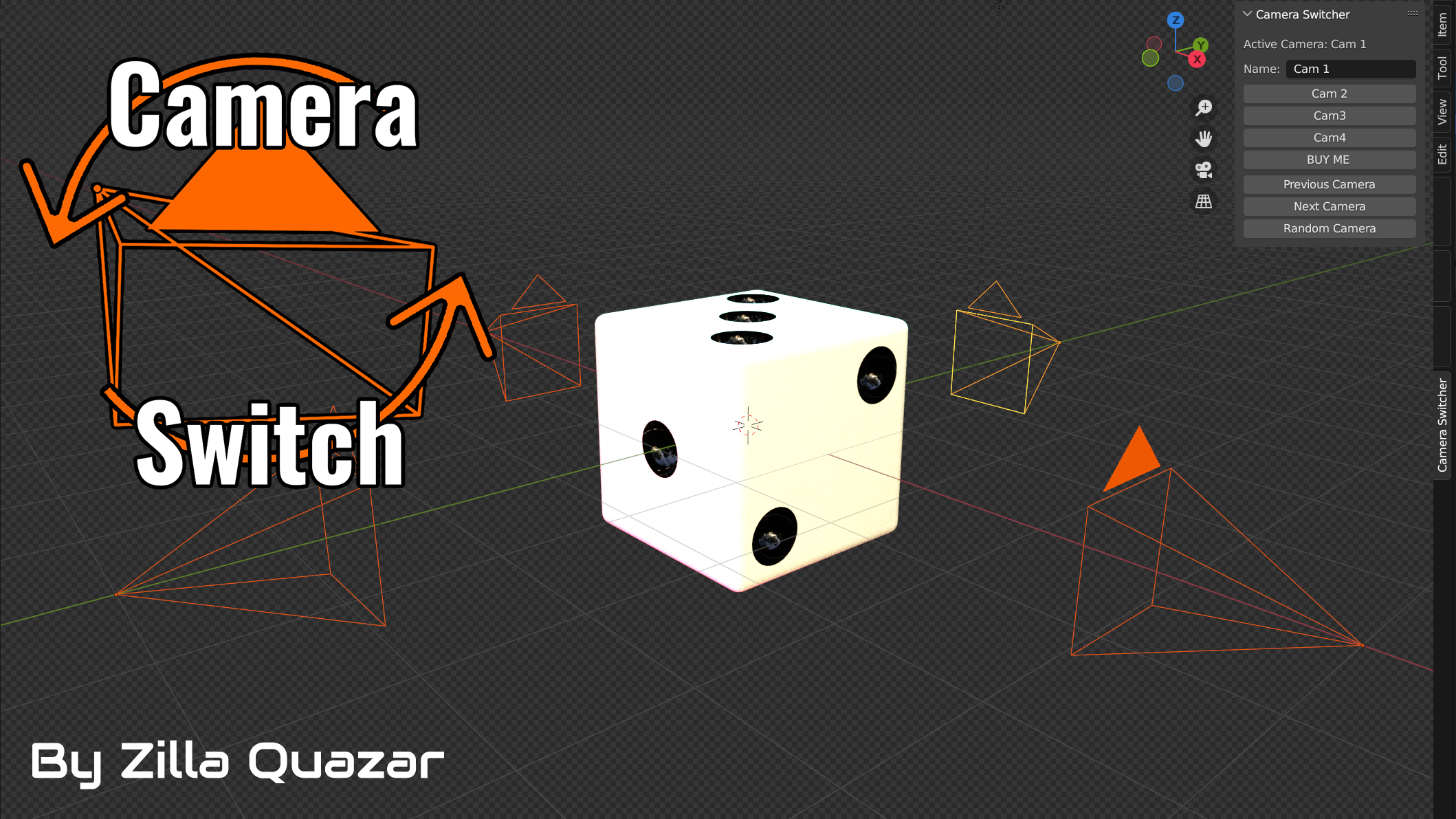
Switch & Click, also called Camera Switcher in its documentation, is a Blender add-on for working with multiple cameras in the active scene. Its Tool Shelf panel shows the active camera and a list of cameras in the scene. The product listing gives Blender compatibility as versions 3.5 through 5.1.
Choose and manage scene cameras
Select a camera by clicking its name, or use the Previous Camera, Next Camera, and Random Camera controls. The add-on also lets you rename cameras. Its documentation describes switching between cameras and rendering from different views, which can help when reviewing animation, visualization, or game scenes with several cameras.
Install and open the panel
The published installation instructions say to download camera_switcher.zip, open Blender's Edit > Preferences, choose Add-ons, and select Install. Choose the ZIP file, install it, then enable Camera Switcher in the add-ons list. In the 3D Viewport, the panel is listed under View3D > Tool Shelf > Camera Switcher. Menu labels can vary between Blender releases.
If the scene has no active camera, the documentation says the add-on displays a message. Add a camera to the scene, then select it from the panel.
Compatibility and license details
The Superhive product listing gives a Blender version range of 3.5 to 5.1 and identifies the license as GPL. The documentation page uses a different label, “Creative Commons Licence Agreement.” Check the current package terms or ask ZillaQuazar if the license affects your use, modification, or redistribution.